A Step-by-Step Guide to Connecting Your PQAI Account to ChatGPT via MCP
This guide shows you how to connect PQAI to ChatGPT so you can run prior art searches without leaving your chat. Once it’s connected, you

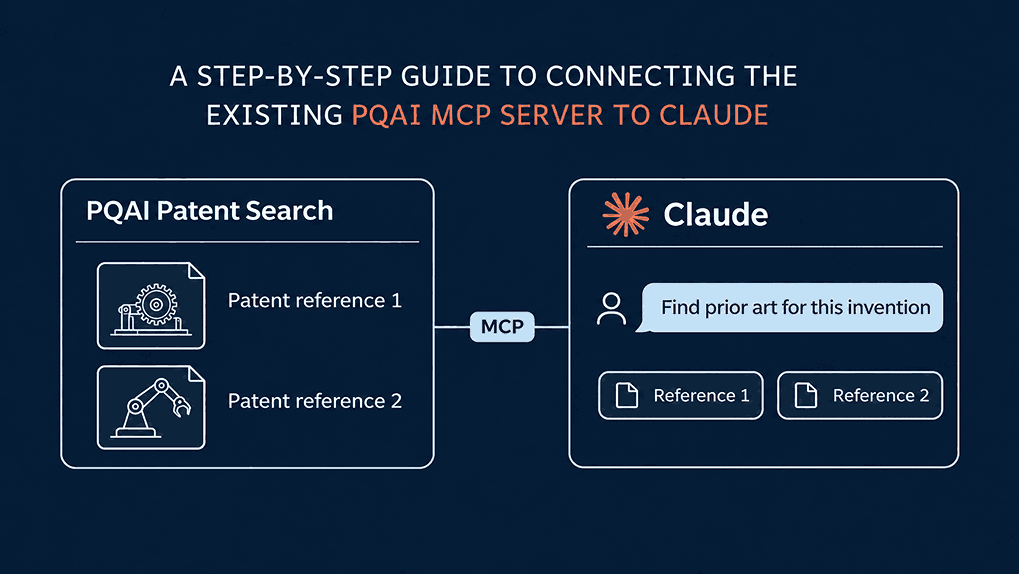
If you already use PQAI for prior art searches, you can run them inside Claude too. This guide shows you how to connect the two, so you can search PQAI from your Claude chats. You describe an invention in plain language, just as you would in PQAI. When the search runs through PQAI, the references are real patents you can open and check. Claude can then help you work through any of them in the same chat.
There’s no coding involved, because PQAI runs the MCP server for you. You add the server’s address to Claude as a custom connector, then sign in to PQAI to approve it. If you’ve already connected PQAI to ChatGPT, it’s the same server, so nothing changes on PQAI’s side.
Before you begin, you’ll need:
Once PQAI is connected, you can run patent searches in Claude and review the results for an initial novelty check. The five steps below cover the whole setup, from adding the connector to running your first search.
Connectors are how Claude reaches outside tools and services, and PQAI is added as a custom connector. You can do that from Claude’s Customize page, and this step gets you to the form where you enter PQAI’s details.
1. Open Claude in your browser or the Claude desktop app since custom connectors work in both.
2. Click Customize in the sidebar. That’s where Claude keeps its connectors.
3. Open the Connectors tab. You’ll see ready-made connectors here, like Google Drive and Gmail. PQAI is added differently, as a custom connector.
4. Click + Add in the top-right corner of the tab.
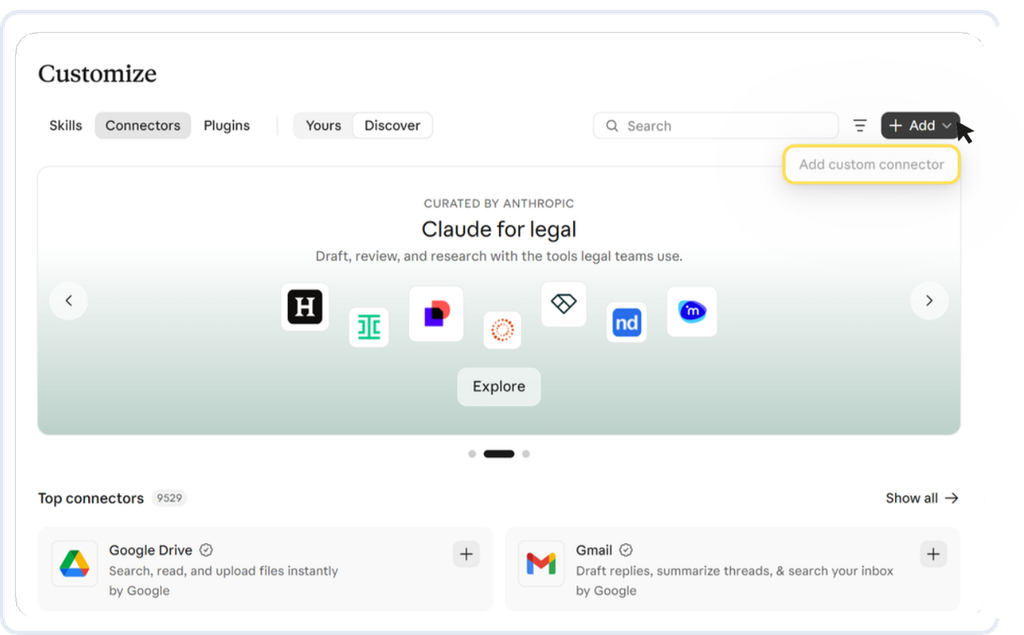
5. Select Add custom connector. A custom connector links Claude to a service through its server address, which is how PQAI connects.
On Team or Enterprise: Only an Owner, or someone with the right role, can add custom connectors. The Owner adds PQAI once for everyone from Organization settings > Connectors, under Add > Custom > Web, then follows Steps 2 and 3. Members can skip ahead to Step 4.
Selecting Add custom connector opens a short form with just two fields. One names the connector, and the other tells Claude where to find PQAI’s server.
1. In the Name field, enter PQAI Patent Search. Claude shows this name in your connectors list, so it’s how you’ll spot PQAI when you want to use it.
2. In the MCP server URL field, paste https://search.projectpq.ai/mcp, including the https:// at the start. This is the address where PQAI’s server receives requests from Claude.
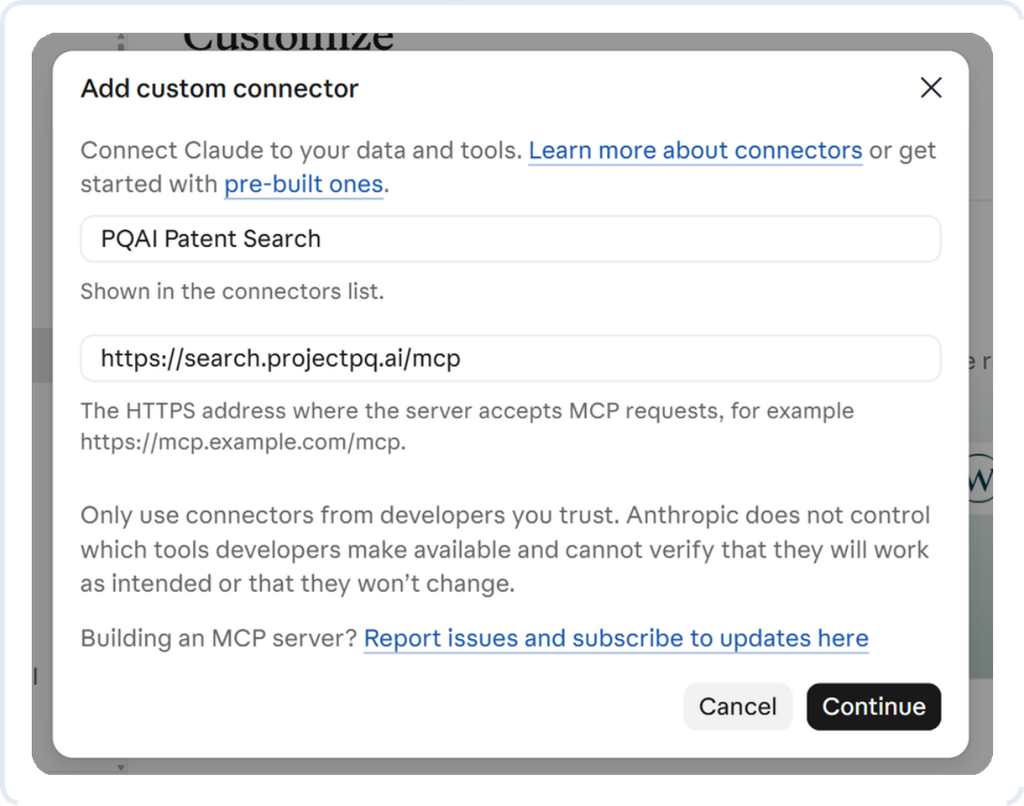
3. Click Continue.
Once you click Continue, Claude contacts PQAI’s server and checks how it signs users in. It marks the settings it finds as “Detected,” so this step is mostly about leaving them as they are.
1. Leave Authentication set to Sign in now. With this option, each person signs in to PQAI before they can use any of its tools.
2. Leave OAuth client set to Use Claude’s published identity. PQAI reads Claude’s details from an address Anthropic hosts, so there’s nothing for you to set up.
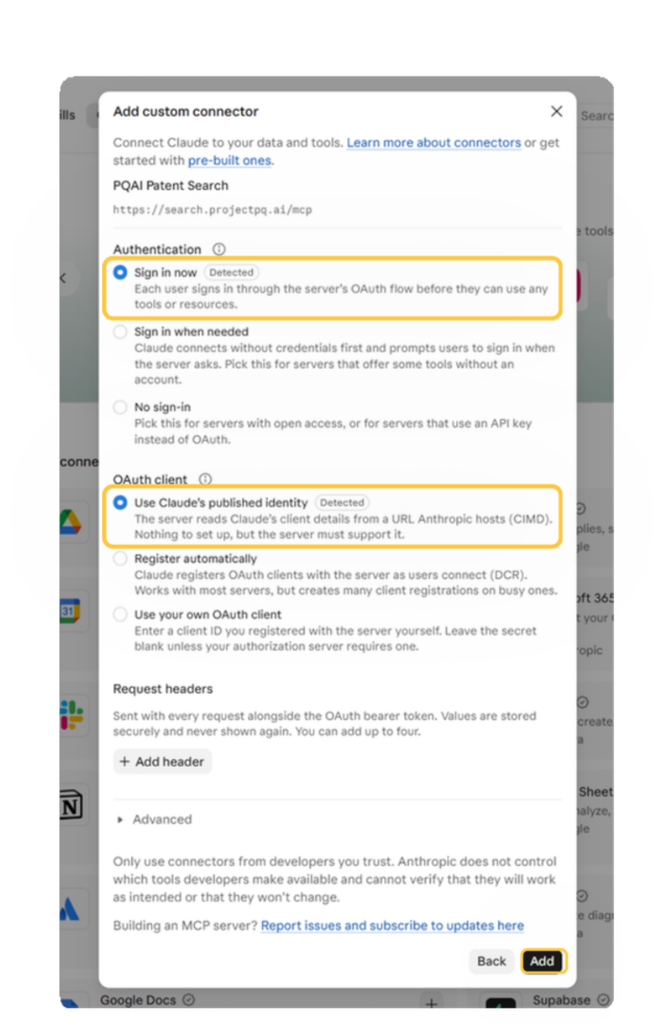
3. Leave Request headers empty. Headers are extra values sent with every request to the server, and PQAI doesn’t need any.
4. Read the security note at the bottom of the form. It reminds you to use connectors only from developers you trust, since Anthropic can’t verify how a third-party server’s tools will behave. The same note appears for every custom connector, so it doesn’t mean anything is wrong with PQAI.
5. Click Add.
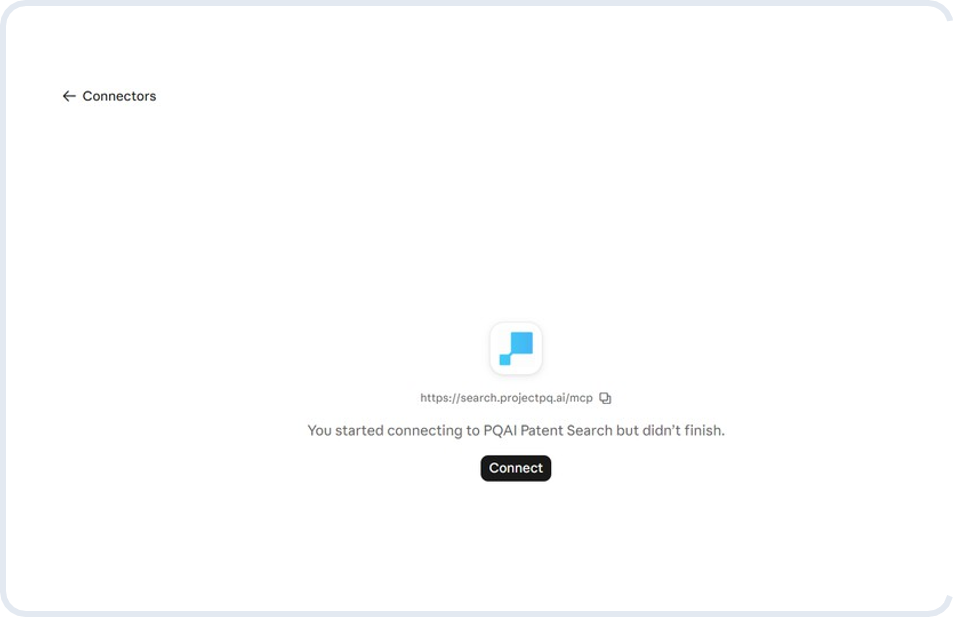
Clicking Add creates the connector, and Claude then opens the PQAI Patent Search page. If Claude shows that the connection is incomplete, click Connect to sign in to PQAI.
1. Click Connect. PQAI’s sign-in page opens.
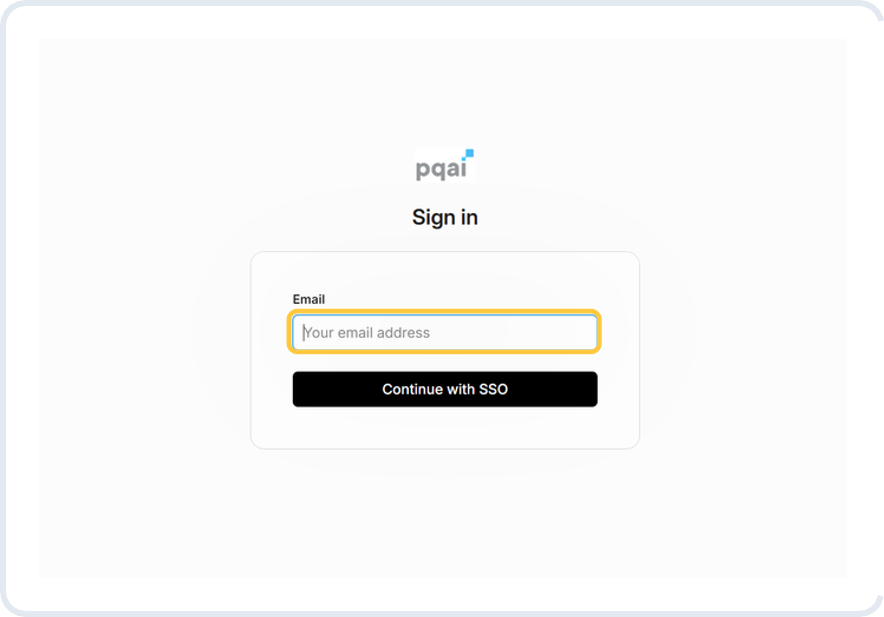
2. Enter the email address you use for your PQAI account.
3. Click Continue with SSO and finish signing in to PQAI. You sign in on PQAI’s own page, so you never type your PQAI login details into Claude.
Once you’re signed in, PQAI is ready to use in Claude.
On Team or Enterprise: Members start here by opening Customize > Connectors, where PQAI Patent Search usually carries a “Custom” label. Click Connect next to PQAI Patent Search, then follow the sign-in steps above.”
With your account connected, you’re ready for your first PQAI search. You can switch PQAI on in a new chat and describe the invention you want to search for.
1. Start a new conversation.
2. Click the + button in the message box.
3. Open Connectors and switch on PQAI Patent Search. Your searches can only go through PQAI while it’s switched on.
4. You can ask Claude to search PQAI and include your invention description in the same message. For example: “Using PQAI, find prior art for the invention described below and assess its novelty against the closest references.” Opening with “Using PQAI” tells Claude the search should go through PQAI.
5. If Claude asks for permission to use a PQAI tool, approve the request so the search can run.
You should check that Claude used PQAI to run the search and that its answer cites the patent records PQAI returned. Even when the results come from PQAI, you can open any relevant patent to check whether it describes the feature you asked about.
If you’re searching for prior art on an invention you haven’t filed yet, you’ll want to know where those details go. How they’re handled depends on your Claude plan and your privacy settings. These details reflect Anthropic’s policies as of November 2026.
On a personal account, Anthropic uses your chats to train its models only if you allow it. You’ll find this setting under Settings > Privacy > Help improve our AI models.
Whenever you delete a chat, it disappears from your history right away and is removed from Anthropic’s systems within 30 days.
Note: If you rate a response with a thumbs up or thumbs down, Anthropic keeps that whole conversation for up to five years. It may also use that conversation to train its models, so you should skip the rating buttons in chats about unpublished inventions. Chats flagged for a safety review also follow separate rules.
Team and Enterprise plans fall under Anthropic’s commercial terms, and your chats aren’t used to train its models by default. On top of that, these plans give you:
Turning off training on a personal account is a real protection. It just doesn’t come with the contract terms and admin controls of a Team or Enterprise plan.
When you search with PQAI through Claude, Claude sends PQAI the details it needs to run that search. These can include parts of your conversation, and PQAI handles them under its own privacy policy.
Here’s how the account types stack up side by side.
| Factors | Personal (Free, Pro, Max) | Team | Enterprise |
| Chats used for training | Only if you allow it | No | No |
| Can you turn training off? | Yes, in Privacy settings | Already off | Already off |
| PQAI results used for training | No | No | No |
| How long chats are kept | Until you delete them (up to five years in de-identified form if training is on) | Until you delete them | Until you delete them, unless your Owners set a custom period (minimum 30 days) |
| Admin controls for your organization | No | Yes | Yes, including custom roles |
| Suited to unpublished inventions | With precautions | Generally suitable | Strongest managed option |
The best way to see what PQAI can do in Claude is to try it on an invention you’re working on now. You can start with a plain description and refine your search as the results come in. If a reference uses a term you hadn’t thought of, you can run another PQAI search with that term right away.
Once you’ve found the closest references, you can ask Claude how your invention differs from each one. That gives you an early sense of whether your idea is new before you take it further. PQAI finds the patents, and Claude helps you make sense of them.

At PQAI, we bring clarity to the world of patents. Through storytelling and insight, we simplify inventions so innovators, researchers, and businesses can learn from the past and build the future.
This guide shows you how to connect PQAI to ChatGPT so you can run prior art searches without leaving your chat. Once it’s connected, you

In one of our earlier articles, we shared how PQAI can be used for invalidity searches. A little before that, we had also conducted a
PQAI is a popular tool among inventors for conducting novelty searches. You can describe an invention in plain language, and its semantic search capabilities can